After the Multi Tier Pricing Category is created, users can add one or more pricing items to the category.
To add pricing items:
- Navigate to Multi-Tier
- Select the Multi-Tier Object. The MXB Multi-Tier layout opens.
- Click New or Link (if you have already created Items).
- Fill in the fields.
- Click Save.
The following fields are available:
- Pricing Item Type – Free-text field used to define the name of the Multi-Tier Pricing.
- Unit – Allows the user to select the corresponding unit for the pricing item.
- Name – Free-text field used to define the name of the Multi-Tier Pricing Item.
- Tier 1 to Tier 7 – Allows the user to create new tiers or link existing tiers.
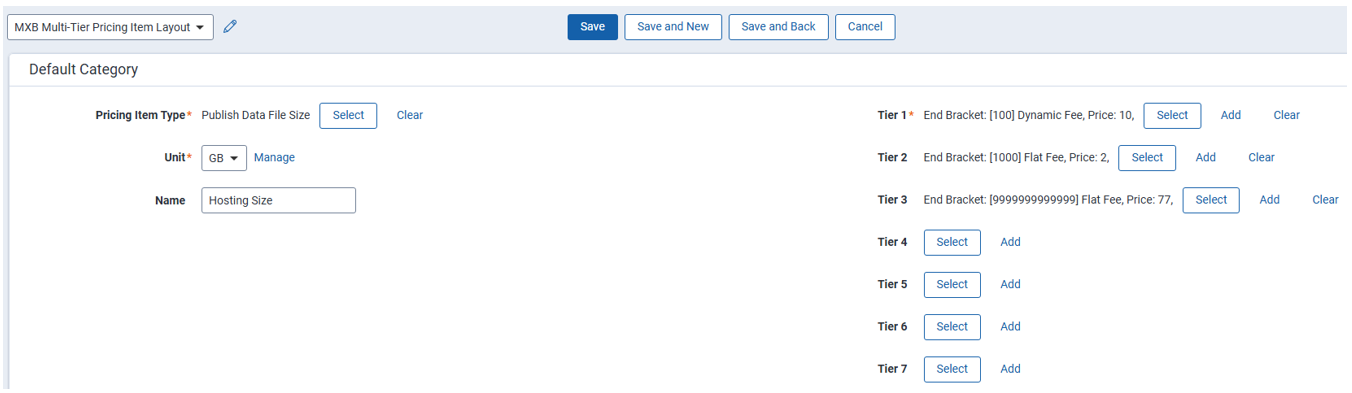
Each Multi-Tier Pricing Item can have up to seven tiers configured.
The tier that is applied to each item is determined by the usage of the Primary pricing item defined on the Multi-Tier Pricing Category.
For example, if Total File Size is selected as the Primary pricing item and the Tiers Charge Level is set to Per Matter, MaxBilling calculates the total Total File Size usage for the whole matter. Based on that usage, the correct tier is applied to all items linked to the category.
If the total usage exceeds 500 MB, all linked pricing items will be charged using their configured Tier 2 pricing.